Resize Photos for Instagram Stories — Without Cropping
Make landscape and square photos fill the full 9:16 Story screen. AI adds the missing background so nothing gets cut off.
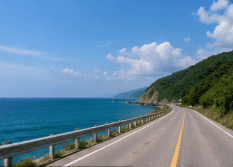
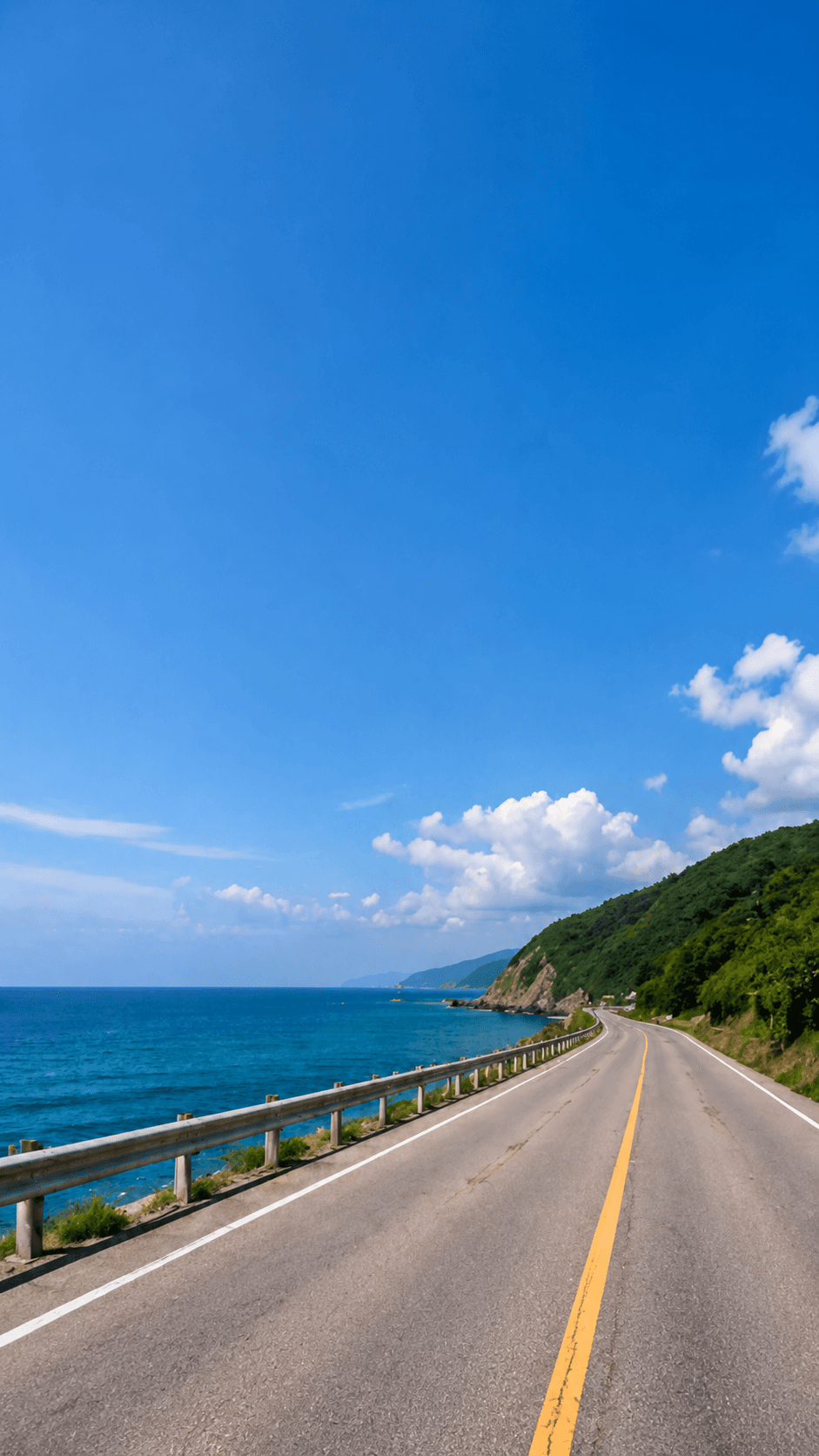
Landscape Photo to Full-Screen Story
Instead of a thin strip on a plain background, the scene itself grows to fill the 9:16 Story frame.
An Instagram Story is 1080 × 1920 px, a 9:16 frame. Add a landscape photo and Instagram shrinks it into a strip across the middle with a color background around it; pinch to zoom and you lose the sides. ExpandMyImage keeps the whole photo and generates matching background above and below it, so your Story is full-screen and the subject stays in view.
AI expansion, not stretching
The original image remains the source of truth. ExpandMyImage grows the canvas around it so the final frame fits a supported social ratio.
How to Fit a Photo to Instagram Story Size
Resize once, then post it to your Story from your camera roll.
Upload your photo
Choose a JPG, PNG, or WEBP image up to 10MB.
Choose 9:16
9:16 is the Story shape. Ask for 3 candidates when the photo is very wide.
Download and add to your Story
The image fills the Story screen, so there is no need to zoom or crop in the app.
Instagram Story Size Guide
The Story formats ExpandMyImage can produce, plus where to keep text.
| Format | Dimensions | Ratio | Notes |
|---|---|---|---|
| Story | 1080 × 1920 px | 9:16 | Full screen |
| Reels cover | 1080 × 1920 px | 9:16 | The profile grid shows a cropped preview |
| Story safe zone | Center 1080 × 1420 px | 9:16 | Keep text clear of the top and bottom 250 px |
Instagram's recommendations can change; check its current guidance before running ads. ExpandMyImage matches the 9:16 shape, and the pixel size depends on your source image.
AI Extension vs Posting the Photo As-Is
Instagram fits a landscape photo into a Story by shrinking it. ExpandMyImage changes the photo's shape instead.
Posting as-is
Quick, but the photo only fills a small part of the screen.
- Photo shrinks to a strip
- Plain color fills the rest
- Zooming in cuts off the sides
ExpandMyImage 9:16
The scene is extended so the photo fills the whole Story.
- Full-screen image
- Whole original kept
- Background continues the scene
Use Cases
Share photos in Stories the way they were meant to be seen.
Landscape travel photos
Post wide scenery to your Story full-screen without losing either side.
Announcements with stickers
Get clean background above and below the photo for text, links, and stickers.
Reels cover images
Turn a still into a 9:16 cover that matches your Reel.
Feed posts reshared to Stories
Turn a 4:5 or square post into a full-screen Story image.
Feature Highlights
Story-ready 9:16
Output matches the Story frame, so Instagram shows it full-screen.
Nothing cut off
The whole original photo stays in the image.
Real background, not bars
AI continues the scene instead of adding a flat color.
Room for stickers and text
New space above and below the subject is ideal for Story elements.
Free credits included
Eligible new users can try it with no credit card required.
FAQ
Answers to common questions before you start expanding images.
What size is an Instagram Story?
An Instagram Story is 1080 × 1920 px, which is a 9:16 aspect ratio. Smaller images with the same 9:16 shape also fill the screen but may look less sharp.
How do I resize a photo for Instagram Story without cropping?
Upload the photo to ExpandMyImage and choose 9:16. The AI keeps the full photo and generates new background above and below it until the image is exactly 9:16. Download it and add it to your Story; it fills the screen with nothing cut off.
Why does Instagram crop or shrink my Story photo?
Because the photo is not 9:16. Instagram either fits the whole photo into the middle of the screen, leaving space around it, or lets you zoom in, which cuts off the edges. A photo that is already 9:16 avoids both.
Where should I put text on a Story image?
Keep text and key details away from roughly the top and bottom 250 px of a 1080 × 1920 Story. That is where the profile bar and the reply field sit. AI-extended space above and below your subject is a good place for stickers, as long as it stays inside that safe zone.
Can I also make Instagram feed posts?
Yes. The same workspace supports 4:5 for portrait feed posts and 3:4 for portrait covers. Choose the ratio that matches where you are posting.
Can I try it for free?
Yes. Eligible new users get free credits with no credit card required. More credits are available as one-time packs or a monthly subscription.
Related Pages
More ways to fit one image to every platform, plus credit pricing.
Start with one image.
Upload a supported image, choose a target ratio, and let ExpandMyImage expand the canvas.